Wednesday, 11 November 2015


How to Change a USER and GROUP ID on Linux For All Owned Files

I would like to know how to change a UID (USER ID)/GID (GROUP ID) and all belonging files on Linux operating system. Say, I want to change UID from 1005 to 2005 and GID from 1005 to 2005 on Linux. How do I make such change for belonging files and directories?

The procedure is pretty simple:
1.      First, assign a new UID to user using the usermod command.
2.      Second, assign a new GID to group using the groupmod command.
3.      Finally, use the chown and chgrp commands to change old UID and GID respectively. You can automate this with the help of find command.
It cannot be stressed enough how important it is to make a backup of your system before you do this. Make a backup. Let us say:
Our sample user name: foo
1.      Foo's old UID: 1005
2.      Foo's new UID: 2005
3.      Our sample group name: foo
4.      Foo's old GID: 2000
5.      Foo's new GID: 3000

Commands
To assign a new UID to user called foo, enter:
# usermod -u 2005 foo
To assign a new GID to group called foo, enter:
# groupmod -g 3000 foo
Please note that all files which are located in the user's home directory will have the file UID changed automatically as soon as you type above two command. However, files outside user's home directory need to be changed manually. To manually change files with old GID and UID respectively, enter:
# find / -group 2000 -exec chgrp -h foo {} \;
# find / -user 1005 -exec chown -h foo {} \;

The -exec command executes chgrp or chmod command on each file. The -h option passed to the chgrp/chmod command affect each symbolic link instead of any referenced file. Use the following command to verify the same:
# ls -l /home/foo/
# id -u foo
# id -g foo
# grep foo /etc/passwd
# grep foo /etc/group

Tuesday, 10 November 2015

When should you use PowerShell backup?

Windows PowerShell can be used in conjunction with your backup software for specific data protection tasks. Find out how and when to use PowerShell backup.

Backup applications do a good job of backing up large numbers of servers and can generally be made to support application-level backups for common business applications. However, there are a few things Windows PowerShell backup probably does better than most backup applications.
The biggest benefit of Windows PowerShell backup is its high degree of flexibility. For instance, suppose you want to create a one-off backup of every Microsoft Word document on an entire file server. This would be simple to do using PowerShell, but may or may not be possible using a traditional backup application. Even though the majority of backup applications on the market include a mechanism forbacking up granular data sets, backup applications usually tend to look at the big picture. It therefore may not be as easy or intuitive to create a copy of a very specific subset of your data.
Another advantage is that a PowerShell backup can sometimes be used to create application-aware backups for applications that are not supported by traditional backup applications. Granted, most of the backup applications on the market support major business applications such as Exchange Server or SQL Server. However, backup applications may not be able to create application-aware backups for custom apps. However, if administrators know the exact requirements for backing up an application, they should be able to build a PowerShell script that will create an application-aware backup.

Active Directory management tool clears the clutter

ADSI Edit is a free tool that can repair Active Directory corruption or remove unwanted clutter. But use it incorrectly and it can spell disaster.

Windows Server Active Directory is nothing new. First introduced in Windows 2000 Server, it is a staple of the Windows Server OS. Some organizations have had Active Directory in place for 15 years or more. As Active Directory databases age, they will accumulate clutter and corruption from partially removed user accounts, failed application installations or other administrative mistakes.

Problems that aren't specific to Active Directory (AD) can add to the clutter. For example, an organization's Exchange Server could fail catastrophically; due to expenses or other factors, the company may decide to retire that server. But, because the server was not taken offline gracefully, there may be references to it in Active Directory. These lingering references can cause problems with anything from load balancing to Exchange Server version upgrades.
Active Directory management tools that are built into the Windows Server OS will display clutter and corruption, but these tools cannot remove unwanted data from Active Directory. This may be due to a broken chain of relational objects, or it could be due to internal safeguards that are designed to protect an Active Directory database against potentially destructive administrative actions.
Clean the Active Directory database with ADSI Edit
Microsoft ADSI Edit is a free tool for cleaning an Active Directory database, even if the usual AD management tools can't. ADSI Edit is essentially a Lightweight Directory Access Protocol (LDAP) editor for the Active Directory database.
ADSI Edit bypasses the safeguards built into the usual management tools, making it very powerful and potentially very destructive. So before using ADSI Edit, it's important to create a backup of the AD database. When used incorrectly, ADSI Edit can destroy Active Directory.
By default, ADSI Edit is included in Windows Server. To access the tool, enter the adsiedit.msc command into a domain controller's Run prompt. You can run ADSI Edit on a member server, but doing so usually requires manually registering the adsiedit.dll file before using it.
After loading ADSI Edit, connect to Active Directory by right-clicking on the ADSI Edit container and choosing Connect to from the shortcut menu (Figure 1).
Connect to Active Directory then use ADSI Edit.
Figure 1. Connect to Active Directory before using the ADSI Edit tool.
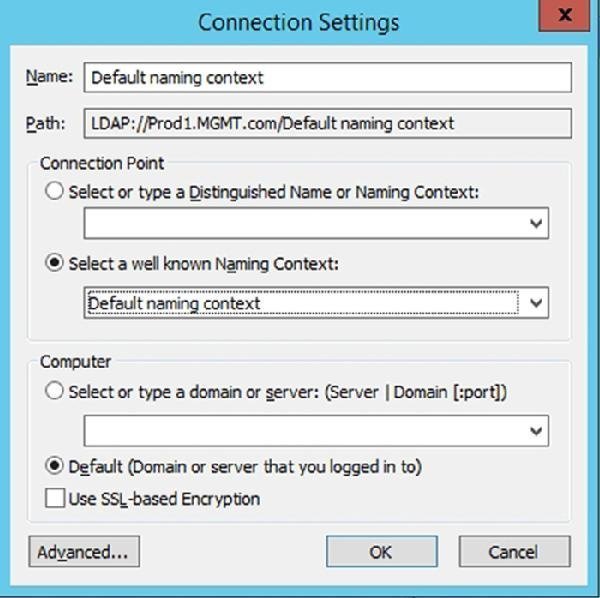
Next, choose the naming context and the server or domain you want to edit. For example, select the default naming context and the default computer (Figure 2). Click OK to load the AD database.

ADSI Edit naming context

Figure 2. Choose a naming context and a computer.
In Figure 3, ADSI Edit displays the same containers that are available through the standard Active Directory management tools. Click on the container to expand any of containers to access the objects or its sub containers.

Containers in ADSI Edit

Figure 3. High-level containers exposed through ADSI Edit.
The management functions you can perform using ADSI Edit vary by object type. Most repairs involve deleting unwanted objects, but there are other actions available, such as resetting a user's password.

To see the management actions available for an object or a container, right click on that object or container for the context menu (Figure 4). Standard management actions usually include move, delete, rename and properties.
Object and container actions
Figure 4. Available management actions vary by object type.Object and container actions
Can I use third-party tools to back up Active Directory?

Although Windows Server has a built-in backup tool, third-party tools offer useful capabilities, such as reporting and alerting features, to help admins back up Active Directory.


In addition to the native Windows Server Backup tool, there are several third-party tools that can help administrators back up Active Directory. For example, Veeam Explorer (part of Veeam Backup), Dell's Recovery Manager for Active Directory and Acronis Backup Advanced for Active Directory can restore individual Active Directory objects from backups.

The scope of features can vary between products, but there are some worthwhile capabilities to consider. Restoration options are some of the most valuable abilities for an Active Directory backup tool. Granular file, object, organizational unit, or attribute restoration -- such as user accounts or group memberships -- without the need to restart domain servers is preferable compared to a complete system state or even full system backup restoration.
Consider reporting and alerting features in tools that can compare the current Active Directory state with existing backups and recommend the most effective backup options. Auditing capabilities can report on changes to AD objects, when changes occurred and who made them; this can be crucial for organizations responsible for compliance and auditing. Look for alerting and notification features to ensure backups are successful or errors get addressed quickly.
Also look for tools that seamlessly interact with native Windows Server tools, such as Active Directory Recycle Bin, to save time and trouble -- or eliminate the need to develop scripts to provide this integration. Look for scheduling flexibility so AD backups can be performed during off-peak traffic hours and backups can be replicated off-site when bandwidth demands are lower.


I need to restore Active Directory to a different hardware platform. Which backup method should I use to avoid problems?

Active Directory restoration can be tricky because there are several rules that must be observed.
Even though domain controllers are supposed to provide redundancy to each other, there are platform-specific differences that prevent data from one server from being used to restore another. You can always use a system state or critical volumes backup to restore a domain controller on which the backup was created. If you create Backup A on Server A, you can use Backup A to restore Server A at any time.

However, you cannot use a system state or critical volumes backup to restore a different domain controller or restore that domain controller to different hardware. You can't use Backup A to restore the Active Directory environment that existed on Server B;  you can't "fix" a problem on Server B with Server A's backup. Similarly, you can't restore Backup A to Server B and expect it to work as Server A.
If you must restore an Active Directory backup to a different hardware platform, use a full server backup. For example, if Backup A is a full server backup -- not a system state or critical volumes backup -- you can restore Server A on another server -- effectively making that new hardware Server A.


Administrators should have a regular backup schedule and be sure to remove outdated backups to avoid storage issues.


There are some tips that can help ensure good Active Directory (AD) backups for domain controllers.
First, administrators should always have a clear picture of which domain controllers to back up. At a minimum, the master and one other domain controller should be backed up in each domain. If there are more than two domain controllers in each domain, ensure each is backed up properly; AD and other system state data is server-hardware dependent, so a backup made on one server cannot be used to restore another AD server.
Next, implement a regular backup schedule for all domain controllers. The typical schedule is to back up AD at least twice within the "tombstone lifetime," which is how long deleted objects are kept in the AD database before being purged. The default tombstone lifetime inWindows Server 2008 and later is 90 days. This allows ample time for changes, such as deletions, to replicate across other domain controllers, so the average backup schedule is roughly a month. However, the actual backup schedule will probably be much higher depending on the tombstone lifetime as well as the complexity and frequency of change in the environment. It's common practice to make daily backups of unique data or critical volumes.
Backups should be marked clearly so administrators can readily distinguish the latest backups for each specific server. AD backup retention should also be a major consideration. AD won't allow restoration of directory objects older than the tombstone lifetime; this is by design to prevent corruption in the AD database. But it also means that backups quickly become obsolete. Since each AD backup can be large, it doesn't take long for backups to take up significant amounts of storage. Organizations can ease storage commitments and costs by removing unnecessary AD backups.
Perform system state backups as a minimum. System state backups include AD content, boot files, system registry, Common Object Model database, and system volume data and other domain controller components. Full server backups can be implemented to perform bare-metal restorations of the domain controllers.
Never save AD backups to the same disk used to store AD components in production. Instead, save backups to a different disk which may be located in the same server, storage array or even an external disk attached to the backup server. The actual choice of backup storage depends on storage options supported by the backup software, but it's critical to avoid a potential single point of failure by saving to a different disk or other media. Although backup copies in off-site locations are always recommended, it's best practice to keep domain controller backups on-site to ensure availability and avoid potential restoration delays.


How should I back up Active Directory? What backup and restore option should I use?
The backup tool included in Windows Server protects data using various backup approaches, such as normal, copy, incremental, differential or daily backups. However, AD imposes specific backup requirements that demand a "normal" backup type.
Users need a carefully orchestrated Active Directory backup because AD is not a single file or folder, but a combination of data specific to theActive Directory server. This includes system startup (boot) files, system registry files, the Component Object Model class registration database, system volume (SYSVOL) data that covers group policy and scripts, as well as all of the components of the AD database. Taken together, these elements make up the "system state" of the AD domain controller.
Later versions of Windows Server, such as 2008 R2, allow backups of critical volumes, which will back up all volumes that contain system-state files. This includes the volumes with boot files, the Windows OS and registry, SYSVOL, the AD database or the AD log file. In addition to backing up the system state or critical volumes, administrators can also opt to perform a full server backup, which includes a complete image of all system content and may be handy when the server supports other enterprise services.
Administrators can choose from several alternatives for AD restorations. The most obvious choice is full restoration -- using the full server backup to perform a bare-metal restoration of the domain controller, or using the system-state backup to restore an earlier AD system state. Administrators can also determine whether the restoration should be nonauthoritative or authoritative. With a nonauthoritative restoration, the restored domain controller will automatically query and synchronize with other duplicate domain controllers to ensure that the restoration reflects the latest AD state represented by other domain controllers. With an authoritative restoration, the restored domain controller is deemed the latest version, so it would be the restored server that is replicated out to other domain controllers.
Restorations typically require the troubled server to be restarted in theDirectory Service Restore Mode, which puts the server into a Windows safe mode. At this point, administrators can select the proper backup for authoritative or nonauthoritative restoration. Select the correct backup for restoration, because the backup media may contain numerous backups from multiple domain controllers. The actual restoration tools and processes can vary depending on the version of Windows Server and the nature of the problem leading to the restoration, so it's vital to review the specific procedures available for an Active Directory backup in your environment.
Versions of Windows Server from 2008 R2 and later also provide an Active Directory Recycle Bin, which preserves data objects and allows fast restoration for deleted data without the need to perform deliberate restores from backups.